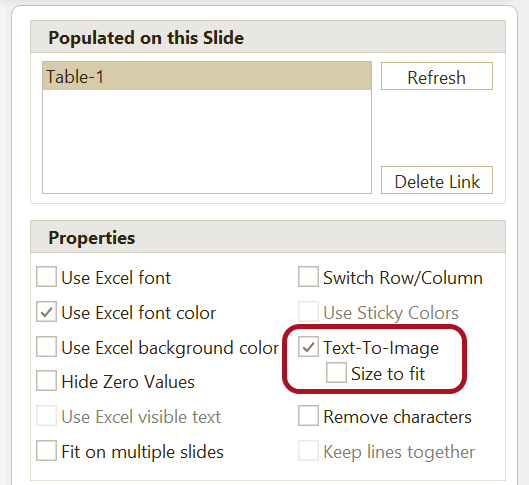
Text-To-Image
Use Text-To-Image to replace specific texts in PowerPoint tables and charts with images you define.
This helps you place the correct image automatically, keep the positioning consistent, and reuse the same definitions in multiple presentations.

Create Text-To-Image Definitions
Before OfficeReports can replace text with images, you must define which image to use for each text.
Click Text-To-Image in the ribbon tab to open the definition window.
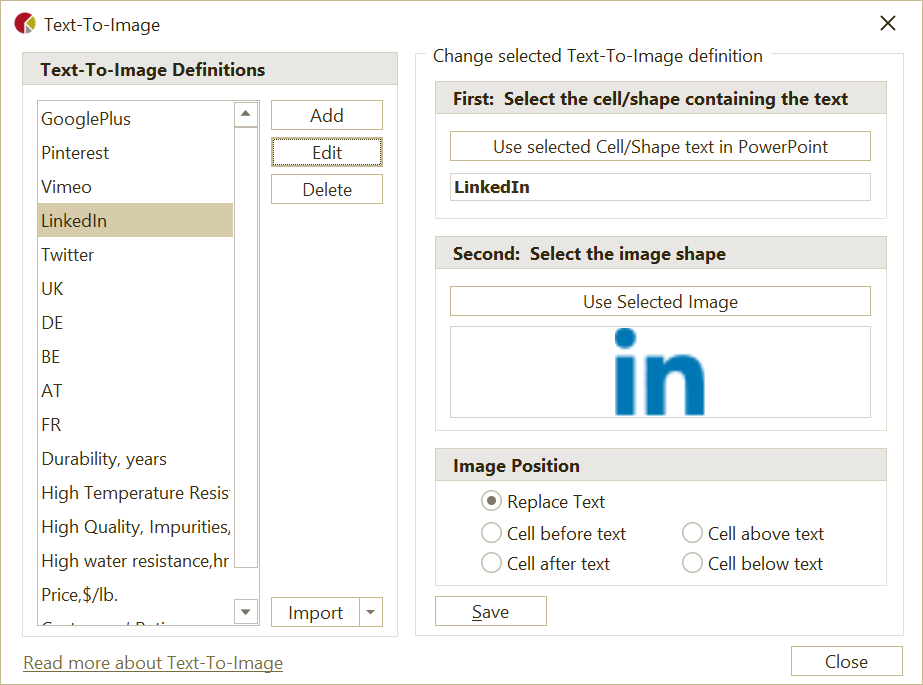
Define a Text-To-Image Definition
- Select a table cell or shape in PowerPoint that contains the text you want to use.
- Click Use selected Cell/Shape text.
- Select the image shape you want to use.
- Click Use Selected Image.
- Select where the image should appear.
You can replace the text with the image or show the image in the cell to the left, right, above, or below the text.
Make sure your table layout leaves space for the image if you do not want to replace the text directly.
Note: OfficeReports copies the selected image shape to slide 1 and hides it. Do not delete this hidden shape.
Import Text-To-Image Definitions
You can import existing definitions and images from other sources.
Import Definitions from Another Presentation
- Open Text-To-Image.
- Select Import > Definitions from other presentation.
- Select the presentation to import from.
OfficeReports imports both the definitions and the image shapes.
Import Images from a Folder
- Open Text-To-Image.
- Select Import > Images from a folder.
- Select the folder that contains the images.
OfficeReports creates one definition for each selected image. It uses the file name as the text to replace.
If needed, select the definition and click Edit to change the text.
Apply Text-To-Image Definitions
After you create the definitions:
- Select the table or chart in PowerPoint.
- Open the Populated Pane on the right.
- Select Text-To-Image.
OfficeReports then replaces the defined texts with the corresponding images.