Productivity in PowerPoint
Use attached worksheets and slide copy features to create similar slides more quickly in PowerPoint.
In many reports, multiple slides use the same layout but show different variables or filters. You can finish one slide and then reuse its setup to create similar slides.
Copy Slide
Use Copy Slide when you want to copy a slide together with its attached worksheet.
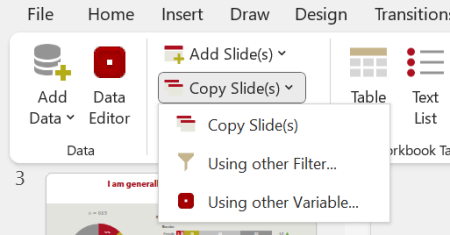
OfficeReports provides these options:
- Copy Slide copies the slide and the attached worksheet. Change the crosstabs in the copied worksheet to update the copied slide.
- Using other Filter copies the slide and the attached worksheet, then changes the filters for the crosstabs on the copied worksheet. You can define multiple filters to create slides for different segments at the same time.
- Using other Variable copies the slide and the attached worksheet, then changes the stub variable for the crosstabs on the copied worksheet. You can select multiple variables to create slides for different variables at the same time.
Copy Slide Setup
Use Copy Slide Setup when you already have a presentation with the required slides and want to apply the setup from the current slide to other slides.
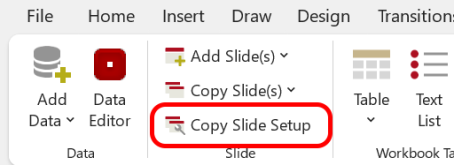
- Select the slide that contains the setup you want to reuse.
- Click Copy Slide Setup.
- Select the slides that should use the same setup.
OfficeReports copies the attached worksheet for each selected slide and attaches it to that slide.
After that, change the crosstabs in the copied worksheets to update the copied slides.