Create a Table of Contents
Use Table of Contents to add an optional interactive table of contents to your presentation. This can make it easier to navigate the presentation, especially in Slide Show mode.
Add a Table of Contents
- Insert a new slide.
- Add a large text box to the slide.
- Click Table of Contents in the ribbon tab.
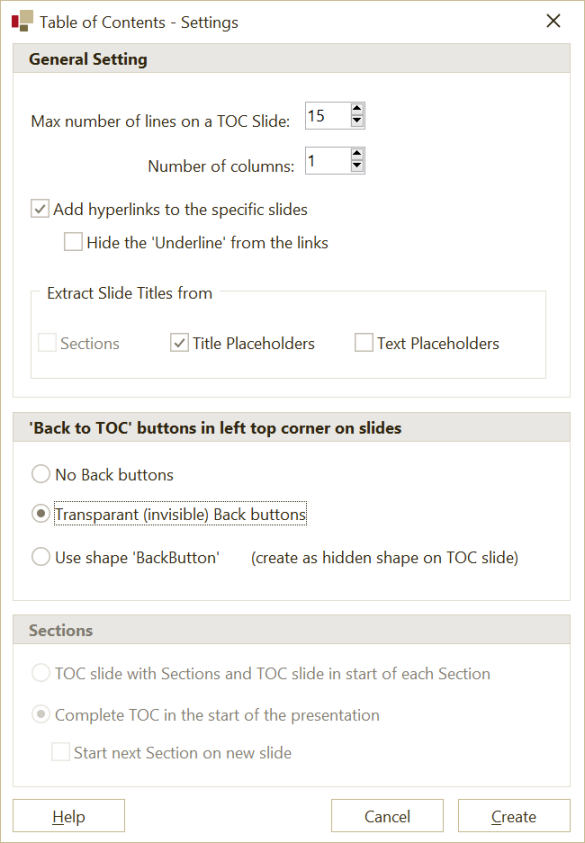
- Configure the settings in the form.
- Click Create.
OfficeReports creates the table of contents. If needed, it can span multiple slides.
Note: OfficeReports uses the text box with the greatest height for the content items unless a shape named
TOCTableis present. If a shape namedTOCTableis present, OfficeReports uses that shape instead.
Choose Which Slides Appear in the Table of Contents
By default, OfficeReports includes slides that contain text in a Title placeholder.
If your presentation does not use Title placeholders, you can choose to include slides that contain a Text placeholder instead. You can also include sections from the form.
To include a slide even if it does not use these placeholders, add a shape named ORTitle to the slide. OfficeReports includes the slide even if that shape is hidden.
OfficeReports does not include slides that contain a hidden shape named ORNOTitle. It also excludes slides that do not contain a title shape as defined above.
Choose Which Text Appears in the Table of Contents
OfficeReports uses text from shapes in this order:
- A shape named
ORTitle - A Title placeholder
- A Text placeholder
If the selected shape has Alternative Text, OfficeReports uses that text in the table of contents.
For recurring reports or updates, use Alternative Text instead of editing the table of contents directly. Otherwise, your changes may be lost when you update the table of contents.
Use Sections
You can include sections in the table of contents.
You can also create a general table of contents slide that lists sections and then start each section with its own table of contents. If you also add back buttons to all slides, this can make the presentation easier to navigate.
Update the Table of Contents
- Click Table of Contents.
- Select Update.
Add Back Buttons
When you use hyperlinks in the table of contents to navigate to specific slides, add back buttons so it is easy to return to the table of contents.
To use your own back button design, add a hidden shape named BackButton to the table of contents slide.
You can also use invisible back buttons by selecting Invisible Back Buttons in the form.