Sticky Colors
Use Sticky Colors to keep chart colors consistent based on text values in the workbook.
Before OfficeReports can apply sticky colors automatically, you must define which colors to use for specific texts.

Create a Sticky Color Definition
Click Sticky Colors in the ribbon tab to open the definition window.
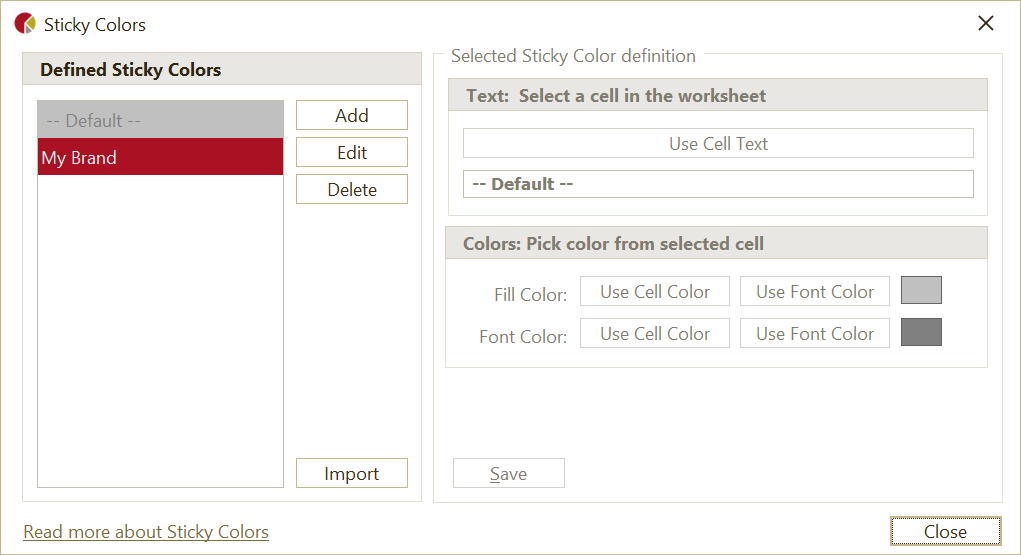
To define a sticky color:
- Select a cell in the worksheet that contains the text you want to use.
- Click Use Cell Text.
- Select a cell in the worksheet that contains the fill color you want to use.
- Click Use Cell Color or Use Font Color.
- Select a cell in the worksheet that contains the font color you want to use.
- Click Use Cell Color or Use Font Color.
Apply Sticky Colors
After you create the sticky color definitions:
- Select the chart in PowerPoint.
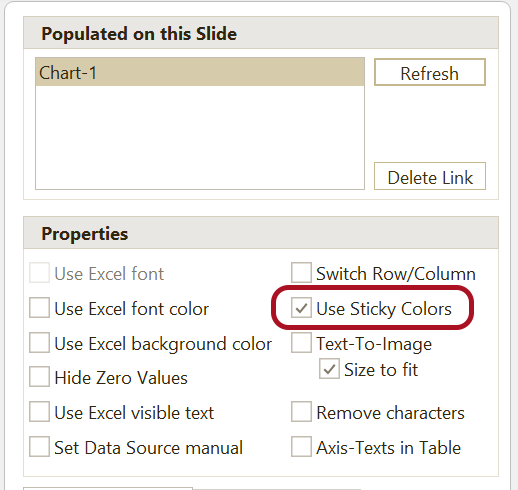
- Open the Populated Pane on the right side.
- Select Use Sticky Colors.
The chart then uses the defined colors based on the texts in the chart.