Import Data
Use Import Data to add survey data to your OfficeReports file.
OfficeReports stores the imported data in an OfficeReports database that has the same name as the file you are working with and the extension .ordbx.

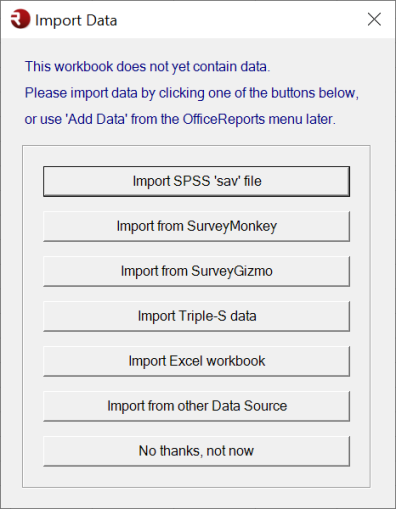
As soon as you click the OfficeReports menu in Excel, the Import Data window opens. You can also open Add Data at any time to import data from another source.
When should I use Import Data?## When should I use Import Data?
Use Import Data when:
- creating a new OfficeReports file;
- adding data to an OfficeReports template for the first time; or
- adding a dataset that contains only respondents who have not previously been imported.
This is the usual starting point for a new study, tracker, or report. You will also normally use Import Data when adding a new wave to a tracker, provided that all respondents in the new wave are new.
When should I use Merge Data instead?
Use Merge Data when the new dataset contains respondents who may already exist in the OfficeReports file.
Existing respondents will be updated, while respondents who have not previously been imported will be added.
Use Merge Data whenever you are unsure whether all respondents in the dataset are new.
This is common when:
- you started building the report on preliminary data
- fieldwork is still in progress
- you received a newer export of the same study
- you want to add new respondents while also updating respondents that already exist
- you want to add extra variables to data that was already imported
In those situations, Merge Data is right choice.
Supported data sources
OfficeReports supports these data sources:
- SPSS (
.sav) - Excel (
.xlsx) - CSV
- Triple-S (
.xml,.sss) - SurveyMonkey
- Alchemer
- Databases (MSSQL, MySQL, Access and all databases supporting ODBC)
- OfficeReports database (
.db,.accdb, OfficeReports database files)
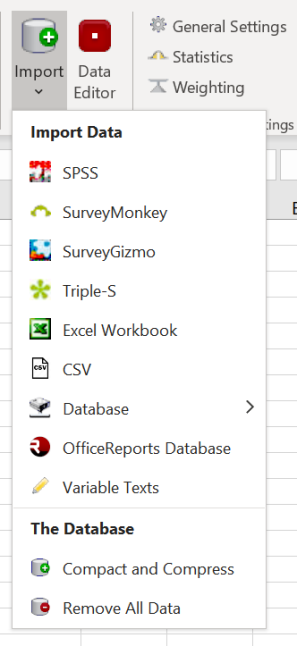
Import data
- Open the OfficeReports menu in Excel.
- Select Add Data.
- Select the data source you want to import from.
- Select the file or source you want to import.
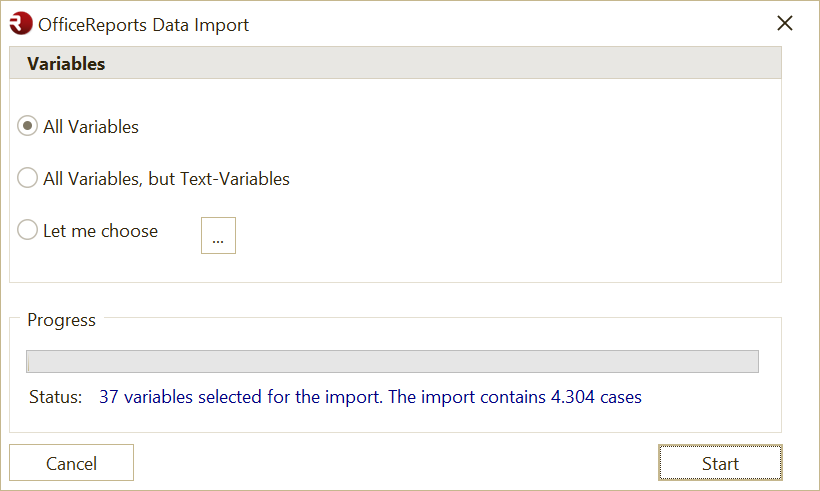
- Select the variables you want to import.
- Click Start.
When the import is complete, OfficeReports opens the Data Editor, where you can review the imported data and recode variables if needed.
Note: If you import an SPSS
.savfile that contains Multiple Response Sets, OfficeReports automatically imports each set as a derived variable and hides the original variables in the groups.
After importing data
After the import, always review the result before continuing.
Check:
- whether the total number of respondents looks correct
- whether the expected variables were imported
- whether important wave or period values are present
- whether variable types and category values look correct
- whether any recoding is needed in the Data Editor
If this is the first import for the report, you can continue with table creation, filtering, weighting, and report setup.
If the report already existed before the import, also check whether you should have used Merge Data instead.
Import more data later
If you need to import more data into an OfficeReports file that already contains data, first decide whether the new dataset contains:
- only completely new respondents
- or a mix of new respondents and respondents that were already imported earlier
If the new dataset may overlap with already imported respondents, use Merge Data instead of importing all cases as new cases.
Importing overlapping data as all new cases can create duplicate respondents.
Weighting
If your report uses weighted tables and you import more data, make sure the new respondents also receive valid weight values.
If you do not import a weight variable, or if the new respondents get missing or zero weight values, those respondents are ignored in weighted tables.
This means:
- the data may look correctly imported in the variable list
- but weighted tables may still show only the old wave or fewer respondents than expected
If needed:
- import the weight variable together with the new data
- or update or recalculate the weight variable after the import
See also Weighting.
Merge data
Use Merge Data when you need to:
- import more respondents into an existing OfficeReports file
- update data that has already been imported
- add more information to respondents that already exist
This is especially common in tracking studies, or in studies where you started working with preliminary data before fieldwork has finished.
Import from different data formats
Import from SPSS (.sav)
SPSS is the recommended import format. Compared to Excel, it contains more information about the data.
This video shows how to import data: SPSS import.
Import from Excel
You can import Excel data directly into OfficeReports. However, when possible, use SPSS (.sav) or Triple-S instead, because those formats contain more metadata such as category order and variable types.
OfficeReports requires this Excel structure:
- Row 1 contains variable texts. When OfficeReports reaches an empty cell in Row 1, it stops adding new variables.
- Row 2 and below contain data. When OfficeReports reaches an empty row, it stops adding new cases.
Note: OfficeReports imports data only from the first worksheet. If your workbook contains data on multiple worksheets, split the data into separate workbooks first.
After you select the workbook, the import can start.
This video shows how: Excel import
Import from CSV
You can import CSV files into OfficeReports. However, when possible, use SPSS (.sav) or Triple-S instead, because those formats contain more metadata such as category order and variable types.
When you import a CSV file, this window opens:
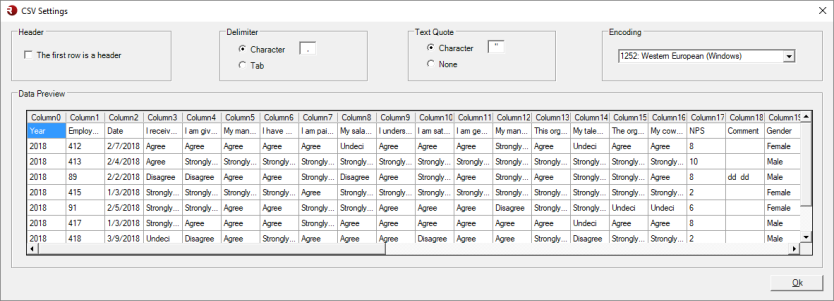
These settings define how OfficeReports reads the CSV file.
Import from Triple-S
Triple-S is a standard format developed for the market research industry and is recommended over Excel when available.
Triple-S data uses two files:
- a metadata file, for example
.xmlor.sss - a raw data file, for example
.dat
Import an OfficeReports database
You can import data from an existing OfficeReports database file with the extension .ordb or .ordbx.
Import from SurveyMonkey
OfficeReports includes direct integration with SurveyMonkey.
- Open Add Data.
- Select SurveyMonkey.
- Authorize OfficeReports to access your SurveyMonkey account.
- Select the survey you want to import from.
This short video shows the process: SurveyMonkey integration
Import from Alchemer
OfficeReports includes direct integration with Alchemer.
- Open Add Data.
- Select Alchemer.
- Authorize OfficeReports to access your Alchemer account.
- Select the survey you want to import from.
After the import, OfficeReports opens the Data Editor, where you can review the imported data and recode the variables if needed.
Import from a relational database
You can import data from databases such as Access, MSSQL, MySQL, or any other database that supports ODBC, like e.g. Oracle and Snowflake.
- Open Add Data.
- Select Database, and click the type of connection you need.
- Follow the instructions.
Reimporting data
If you have made minor changes to a dataset that has already been imported, use Merge Data to import the updated dataset again. Existing respondents will be updated, and new respondents will be added.
If you imported the wrong dataset, delete the imported data source first. Then use Import Data to import the correct dataset.
When in doubt, deleting the existing data source and importing the dataset again is the safest option.
Deleting an imported dataset
You can delete an imported dataset in the Data Editor:
- Open the Data Editor.
- At the top of the variable list, open Used Data Sources.
- Select the data source you want to delete.
- Press the Delete key, or click Delete in the top menu.