Merge Data
Use Merge Data to update an existing OfficeReports file with additional data.
This is often used for reporting the next wave in a tracking study or when you start building a report before data collection is finished. You can begin working with preliminary data, and then update the same OfficeReports file as new respondents or new variables become available.
Use Merge Data when you want to:
- add newly collected respondents
- update data for respondents that already exist
- add extra variables to data that has already been imported
- continue building a report while fieldwork is still in progress
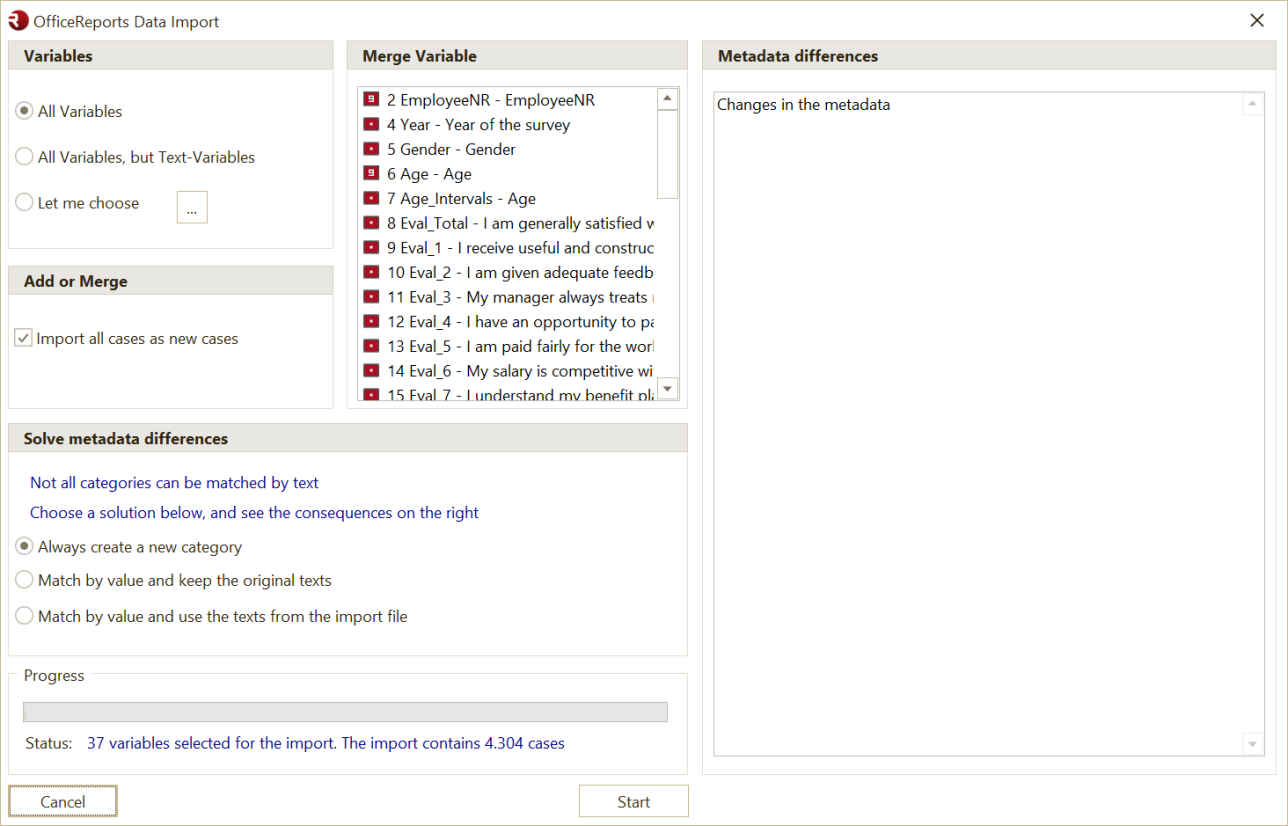
Variables
If the import file contains many variables and you only need some of them, select only the variables you want to import.
Add or Merge
Choose the correct option depending on how the new data relates to the data that is already stored in the OfficeReports file.
Import all cases as new cases
Use this option when the new dataset contains only respondents that are not yet present in the OfficeReports file.
If the new dataset also contains respondents that were already imported earlier, importing all cases as new cases can create duplicate respondents.
This can often be corrected by deleting the incorrect import and then importing again using the correct merge option.
Merge by variable
Use this option when the new dataset should update existing data, add information to existing cases, or add new respondents while also matching respondents that already exist.
Select a Merge Variable. OfficeReports uses this variable to match each imported row with the existing data.
All matched cases are updated with the values from the import file. Imported rows that do not match an existing case are added as new cases.
Choose the right merge variable
The correct merge variable depends on the type of update you want to perform.
Use a unique merge variable for respondent-level updates
Use a unique variable such as RespondentID when each imported row should update one specific respondent.
This is the normal choice when:
- updating respondents that already exist
- adding new respondents while matching existing respondents correctly
- importing a new wave at respondent level
In this situation, the merge variable should uniquely identify each respondent.
If it does not, multiple imported rows may be merged into the same identified case, and later rows may overwrite values from earlier rows.
Use a non-unique merge variable for group-level updates
You can also use a non-unique variable such as Gender when you want one imported row to update all matching cases in the existing dataset.
For example, if the import file contains one row with Gender = Male, the values in that row can be added to all male respondents already in the OfficeReports file.
This is useful when you want to add the same information to a whole group of respondents.
Important: When using a non-unique merge variable, make sure this is intentional. If multiple imported rows use the same merge value, later rows may overwrite earlier values for the same matching cases.
Solve metadata differences
Resolve differences between the import file and the existing variables or categories.
If some category texts are different but the values are the same, select one of the Match by value options.
Common merge risks
Existing respondents were imported as new cases
If respondents already existed in the OfficeReports file, but the new dataset was imported using Import all cases as new cases, duplicate respondents can be created.
This is a common risk when users start building a report with preliminary data and later import an updated dataset.
The merge variable is not appropriate for the type of update
A merge variable should match the level at which you want to update the data.
Examples:
- use
RespondentIDfor respondent-level updates - use
Genderwhen you intentionally want to update all males or all females - use another group variable when you want to update all matching cases in that group
Problems occur when the merge variable does not match the intended update logic.
A respondent-level merge variable is not unique
If you are doing a respondent-level merge, but the selected merge variable is not unique, multiple imported rows may be merged into the same identified case.
In that situation, later rows may overwrite values from earlier rows.
This can lead to incorrect data and, in practice, to too few correctly represented respondents.
The merge variable value changed between the old and new data
If the merge variable itself has changed in the new dataset compared with the value that was imported earlier, OfficeReports cannot match the imported row to the correct respondent.
In that case:
- the row may be added again as a new respondent, creating a duplicate
- or, in the worst case, it may be matched to another respondent if the changed value identifies a different existing case
Safe checklist after merging
After a merge, always check the result before refreshing the full report.
1. Check the total number of respondents
Confirm that the total number of respondents looks plausible.
A total that is too high may indicate that respondents were imported again as new cases instead of being merged.
A total that looks plausible does not always mean the merge was correct, so also check the items below.
2. Check the newest wave or period
Verify that the newest wave or period appears in the data and that the expected number of respondents is present for that wave.
3. Check whether the merge worked at the intended level
Confirm that the merge behaved as expected:
- one imported row updated one respondent when doing a respondent-level merge
- one imported row updated all matching cases when doing a group-level merge
4. Check weighting if the report uses weighted tables
If the report uses weighting, make sure the new respondents have valid weight values.
Important: Respondents without a weight value, or with weight value
0, are ignored in weighted tables.
This means the total respondent count may look correct, while tables still show only the old wave or fewer respondents than expected.
If needed:
- import the weight variable together with the new data
- or update or recalculate the weight variable after the merge
5. Check report filters
Verify that the Report Filter points to the correct period and that Segment Filters or table-level filters are not excluding the new data.
6. Check period-based banner variables
If the report uses banner variables that include periods or waves, update them if needed:
- add the newest period
- remove the oldest period if you want to keep the same reporting window
7. Update any “Last period” formulas
If the report contains a category such as Last period, update its formula so it points to the correct prior wave.
8. Refresh the workbook
After the checks are complete, run Refresh Report to update all tables, charts, and shapes in the workbook.
9. Refresh PowerPoint after Excel
If the workbook is linked to PowerPoint, refresh the workbook first and then refresh the presentation.
See Refresh Report for Excel and Refresh for PowerPoint.
Common problems after merging data
The total respondent count is too high after the update
Possible cause:
- respondents that already existed were imported as new cases instead of being merged
The data looks wrong after the merge, even though the count does not look too high
Possible causes:
- a respondent-level merge variable was not unique
- the wrong merge variable was selected for the intended update
- the merge variable changed between the previously imported data and the new dataset
The total count looks correct, but tables still show only the old wave
Possible causes:
- the new respondents do not have valid weight values
- the report filter still points to the old period
- a segment or table filter excludes the new respondents
- the newest wave was not added to a period-based banner variable
PowerPoint still shows old numbers after the merge
Possible cause:
- the workbook was not refreshed before refreshing the presentation