Formula Editor
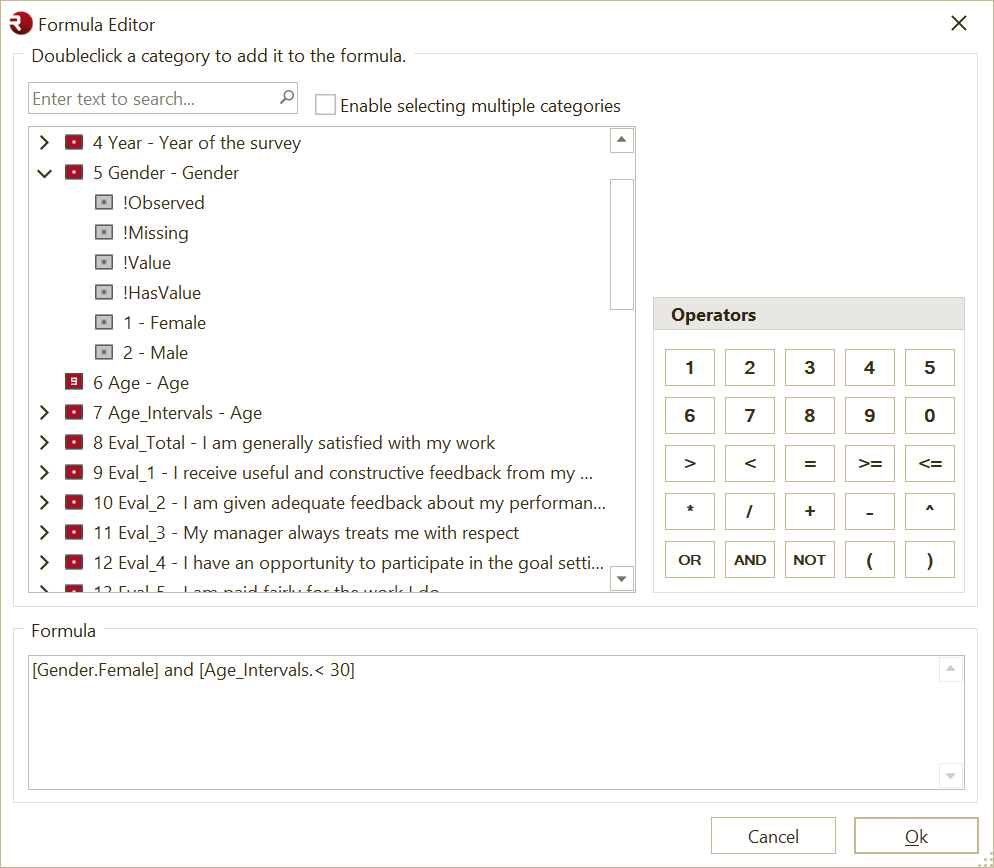
Use the Formula Editor to create and edit formulas for derived variables in OfficeReports.
Formulas are calculated at the respondent level.
You can use the Formula Editor for:
- categories in derived categorical variables
- derived numeric variables
- derived date variables
How formulas are evaluated
OfficeReports evaluates the formula for each respondent.
This means a formula can return:
- true or false for each respondent
- a numeric value
- a date value
The expected result depends on where the formula is used:
- formulas for categories in derived categorical variables should return true or false
- formulas for derived numeric variables should return a number
- formulas for derived date variables should return a date value
Reference categories
Reference a category by combining the variable name and category name with a period inside square brackets.
Example:
[Gender.Male]
This returns true for respondents in category Male, and false for all other respondents.
Special category references
You can also use these special references:
-
[Gender.!Observed]
Returns true when the variable has an observed value. -
[Gender.!Missing]
Returns true when no answer is registered for the variable. -
[Variable.!HasValue]
Returns true when the answered category has a value. This is useful when you want to exclude categories marked as No Value, such asDon't know. -
[Variable.!Value]
Returns the numeric value of the answered category.
Important:
[Variable.!Value]returns a numeric result.
The other special references above return true or false.
What is the value of !Value?
[Variable.!Value] returns the value of the answered category.
For a normal categorical variable, this is the value of the selected category.
For a multiple response variable, it returns the sum of the values of all answered categories.
By default, the value of a category is its sequence number in the variable’s category list.
For example, the first category has value 1, the second category has value 2, and so on.
This default can be overridden by assigning a specific value to the category. In that case, !Value returns the assigned category value instead of the default sequence number.
Example: normal categorical variable
Suppose variable Satisfaction has these categories:
Very dissatisfied=1Dissatisfied=2Neutral=3Satisfied=4Very satisfied=5
If a respondent answered Satisfied, then:
[Satisfaction.!Value]
returns:
4
Example: multiple response variable
Suppose variable BrandsUsed is a multiple response variable with these category values:
Brand A=1Brand B=1Brand C=1Brand D=1
If a respondent selected Brand A, Brand C, and Brand D, then:
[BrandsUsed.!Value]
returns:
3
This is useful when all categories in a multiple response variable have value 1, because !Value then returns the number of selected categories.
Reference variables
Reference a non-categorical variable by using the variable name inside square brackets.
Example:
[Age]
You can also test whether a numeric variable is observed or missing:
[Variable.!Observed][Variable.!Missing]
Use formulas for categories
Formulas for categories in derived categorical variables should return a Boolean value:
truefalse
Example:
[Gender.Male] AND [Age] > 50
This returns true for male respondents older than 50.
Use category formulas in numeric variables
Boolean expressions can also be used in numeric formulas.
In numeric calculations:
trueis treated as1falseis treated as0
This is useful when you want to count how often a condition is met.
For example, if you want to count how many times Agree was answered across several questions, you can add Boolean expressions together:
[Q1.Agree] + [Q2.Agree] + [Q3.Agree] + [Q4.Agree]
For each respondent, OfficeReports treats each Agree condition as 1 when true and 0 when false, then adds the results.
Use arithmetic operators
Use arithmetic operators to combine two operands and return a calculated value.
| Operator | Description |
|---|---|
+ | Add |
- | Subtract |
* | Multiply |
/ | Divide |
^ | Raise to a power |
% | Return the remainder after division |
Use logical operators
Use logical operators to compare values or combine expressions so the formula returns true or false.
Conditional operators
| Operator | Description |
|---|---|
= | Equal to |
< | Less than |
> | Greater than |
<> | Not equal to |
!= | Not equal to |
<= | Less than or equal to |
>= | Greater than or equal to |
Boolean operators
| Operator | Description |
|---|---|
NOT | Boolean NOT |
AND | Boolean AND |
OR | Boolean OR |
XOR | Boolean exclusive OR |
Use an if expression
Use if to return different results depending on a condition.
Syntax:
if(condition, result if true, result if false)
Example:
if([Age] > 50, [Discount] * 2, [Discount])
This doubles the discount when Age is greater than 50.
Often made mistakes
1. Mixing Boolean and numeric expressions incorrectly
Formulas defined for categories need to return true or false for each respondent.
Wrong
[Gender.Male] AND [Age]
Why it is wrong
[Gender.Male] is a Boolean expression, but [Age] is numeric.
AND can only be used with expressions that return true or false.
Correct
[Gender.Male] AND [Age] > 50
This returns true only for male respondents older than 50.
2. Missing brackets or malformed expressions
A missing bracket can cause a parsing error.
Wrong
([Day] = 16 AND [Month] = 1
Why it is wrong
The closing bracket is missing.
Correct
([Day] = 16 AND [Month] = 1)
Using the Formula Editor helps avoid this kind of mistake.
3. Unexpected characters in the formula
Typing stray brackets or extra symbols can cause an error such as Unexpected character encountered.
Wrong
[Q1.Yes]) AND ] AND [Q5] > 0
Why it is wrong
The formula contains extra closing brackets and invalid characters.
Correct
[Q1.Yes] AND [Q5] > 0
4. Using !Value when a Boolean result is needed
[Variable.!Value] returns a number, not true or false.
If you use it in a category formula, make sure the full formula still returns a Boolean result.
Example
[Q1.!Value] > 2
This is valid for a category formula, because the comparison returns true or false.
Check the results
To verify the result of a formula:
- Select the variable you created.
- Select the variables used in the formula.
- Open the Data View tab.
- Review the data at respondent level.
This helps confirm that the formula returns the expected result for each respondent.