Troubleshooting – The OfficeReports ribbon tab is missing
When OfficeReports is missing in Excel or PowerPoint, please do the following 2 steps to get the menu back.
First: Check if OfficeReports is disabled
If you have run into an error on your computer while working on OfficeReports, you might see this message, when restarting Excel or PowerPoint:! [addin problems message](/Resources/Images/OfficeReportsAnalytics/First Check if OfficeReports_654x266.png)
In this situation, please select 'No', so that the OfficeReports menu is not disabled from your Excel/PowerPoint menu!
If the OfficeReports menu is disabled you must do the following:
- Enter Excel -> File -> Options -> Add-ins
- In the bottom of this window select 'Manage Disabled' items:! [Select ' Disabled Items'](/Resources/Images/OfficeReportsAnalytics/First Check if OfficeReports_1.png)
- Press the 'Go.' button, and enable OfficeReports again if it is in the disabled-list.
- Close Excel
Whether OfficeReports was disabled or not, always Reregister OfficeReports, as described in the next chapter.
The procedure in PowerPoint is similar.
Second: Reregister OfficeReports
Please do the following:
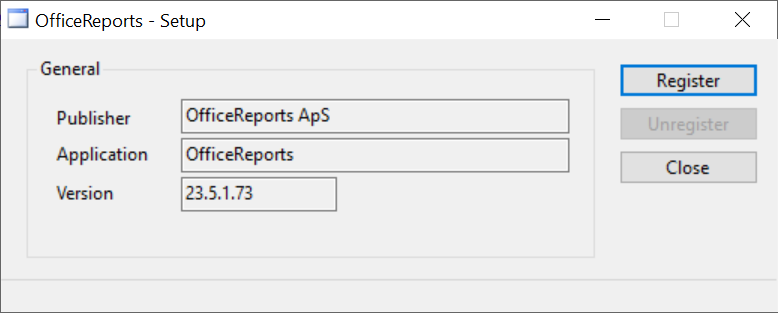
First, close all open Excel workbooks and PowerPoint presentations. In the Windows Start menu>All Apps please find the OfficeReports folder. Click on the OfficeReports icon (NOT the 'OfficeReports App' icon!) and this window will pop-up:
Press 'Unregister' and directly after that click 'Register'.
Now check if the OfficeReports menu is back again.
If this is not solving the issue, please contact OfficeReports Support at [helpdesk@officereports.com](mailto:helpdesk@officereports.com)